Magaya
Bookkeeping


One of the least visible ways to save money is by reducing the time your team spends on repetitive accounting tasks. Depreciation is one of them, and it is also one of the easiest to automate.
Depreciation is the loss of value of fixed assets over time, such as vehicles, buildings, office equipment, or machinery. For the purpose of this article, we focus only on the straight-line depreciation method.
In practice, recording this expense correctly helps financial statements stay closer to reality and avoids large adjustments at year end.
Three common ways to record it
Depreciation can be recorded annually on the purchase date, annually at fiscal year end, or monthly. Out of these three, monthly depreciation is usually the most practical option and the one that works best in Magaya and most accounting systems.
Our recommendation
Recording depreciation monthly keeps financial statements more realistic and avoids large depreciation expenses being concentrated in one single period.
This process offers two major advantages: accuracy and automation.
First, you need to properly record the asset purchase, whether it was paid immediately or purchased on credit.
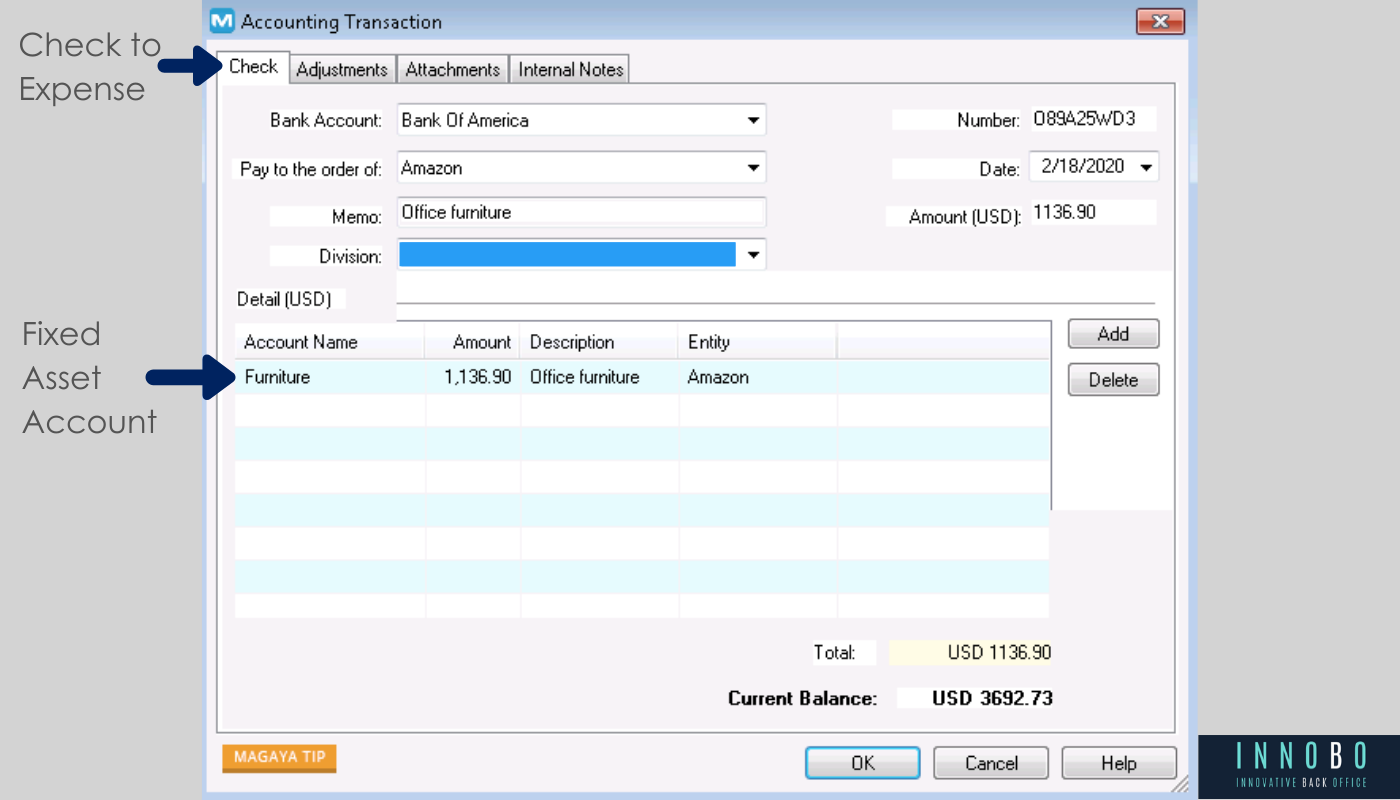
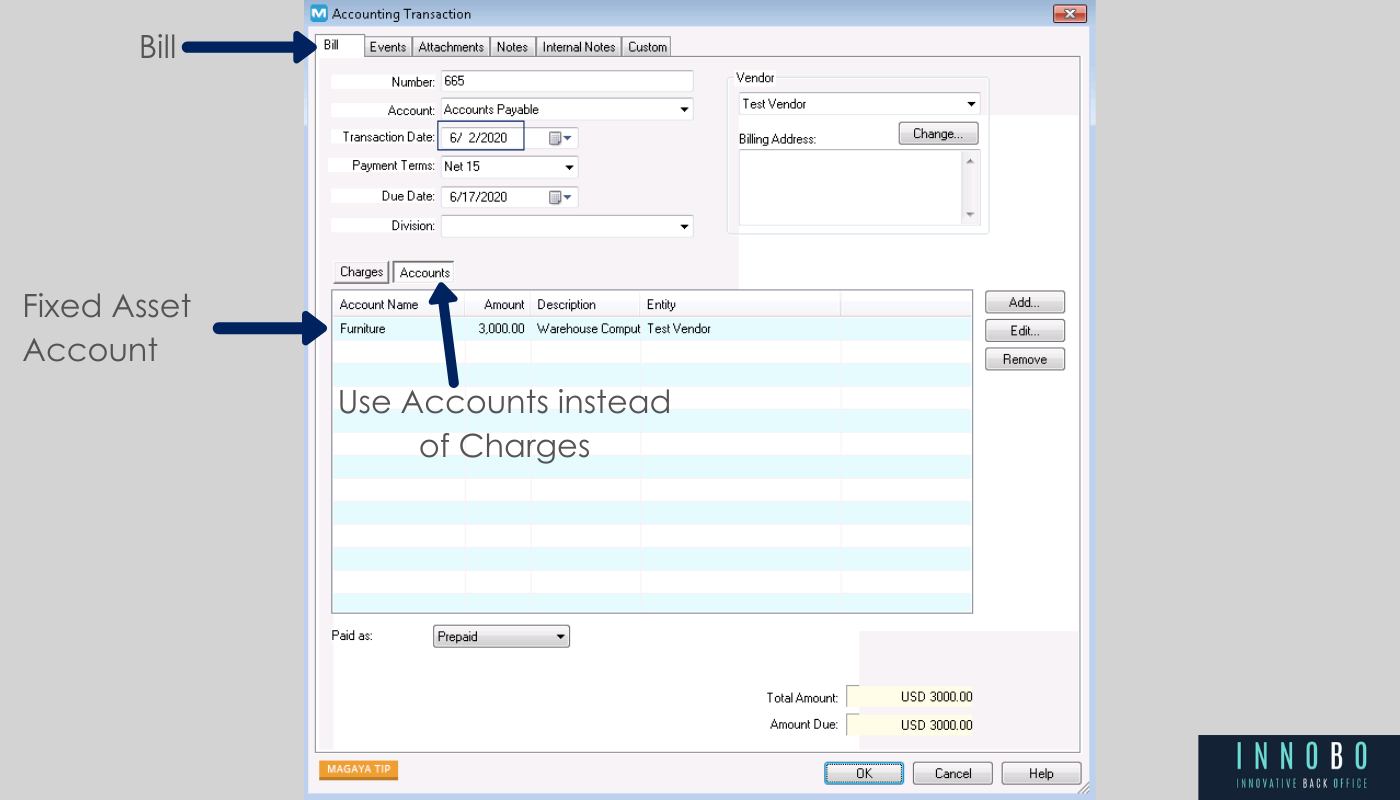
Once the asset is registered, the next step is defining the depreciation logic and automating the recurring entry.
1. Calculate the depreciation
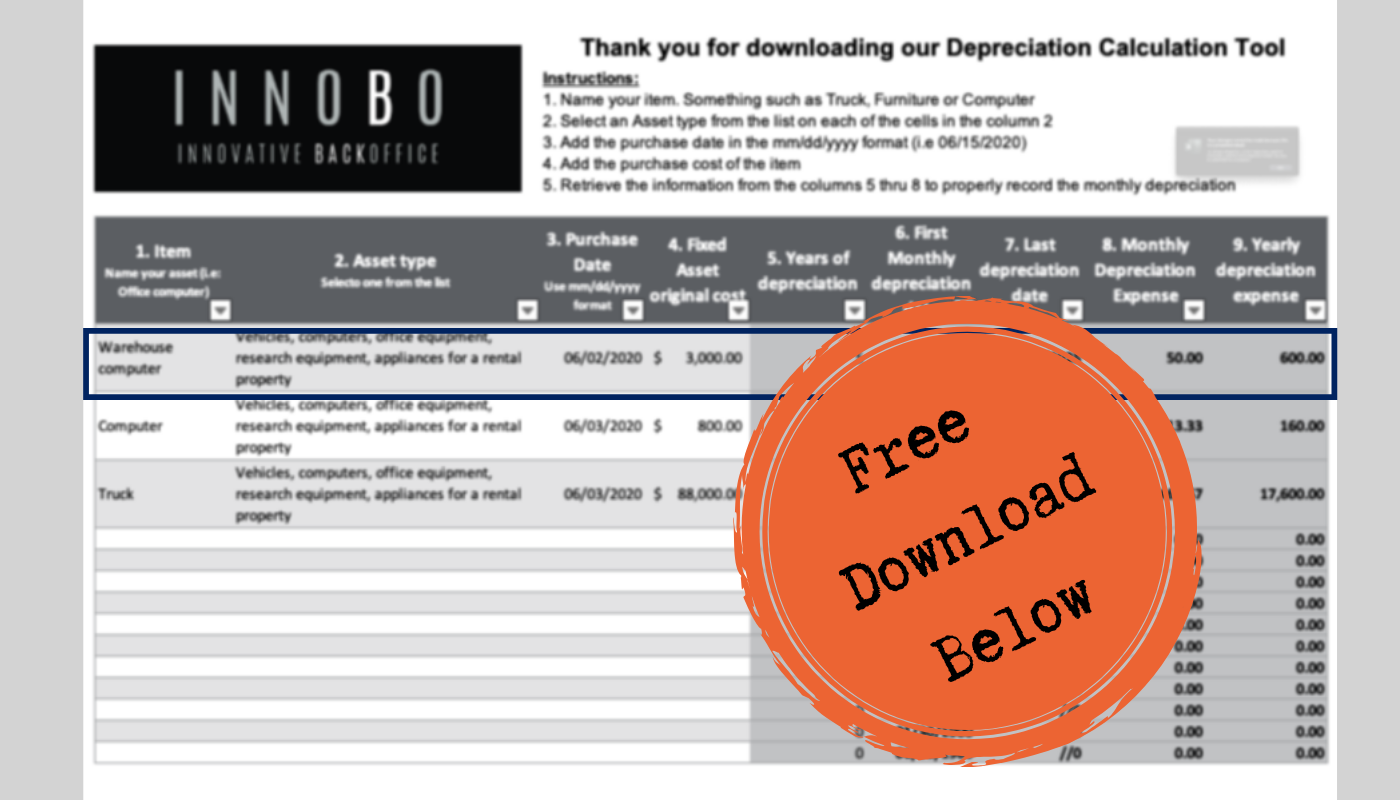
Use a spreadsheet that helps you determine the depreciation period, the date of the first journal entry, the date of the last journal entry, and the monthly or annual depreciation expense amount.
2. Create the recurring journal entry
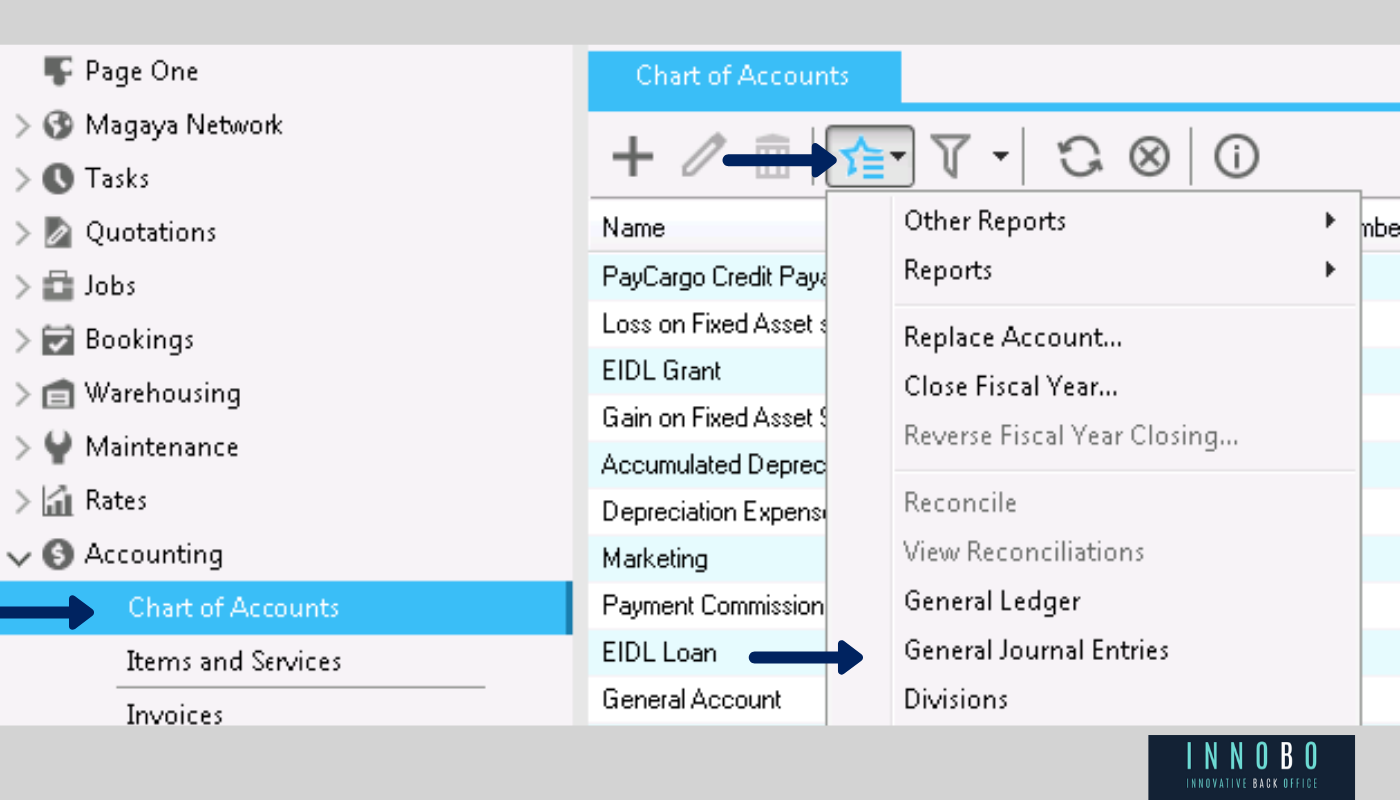
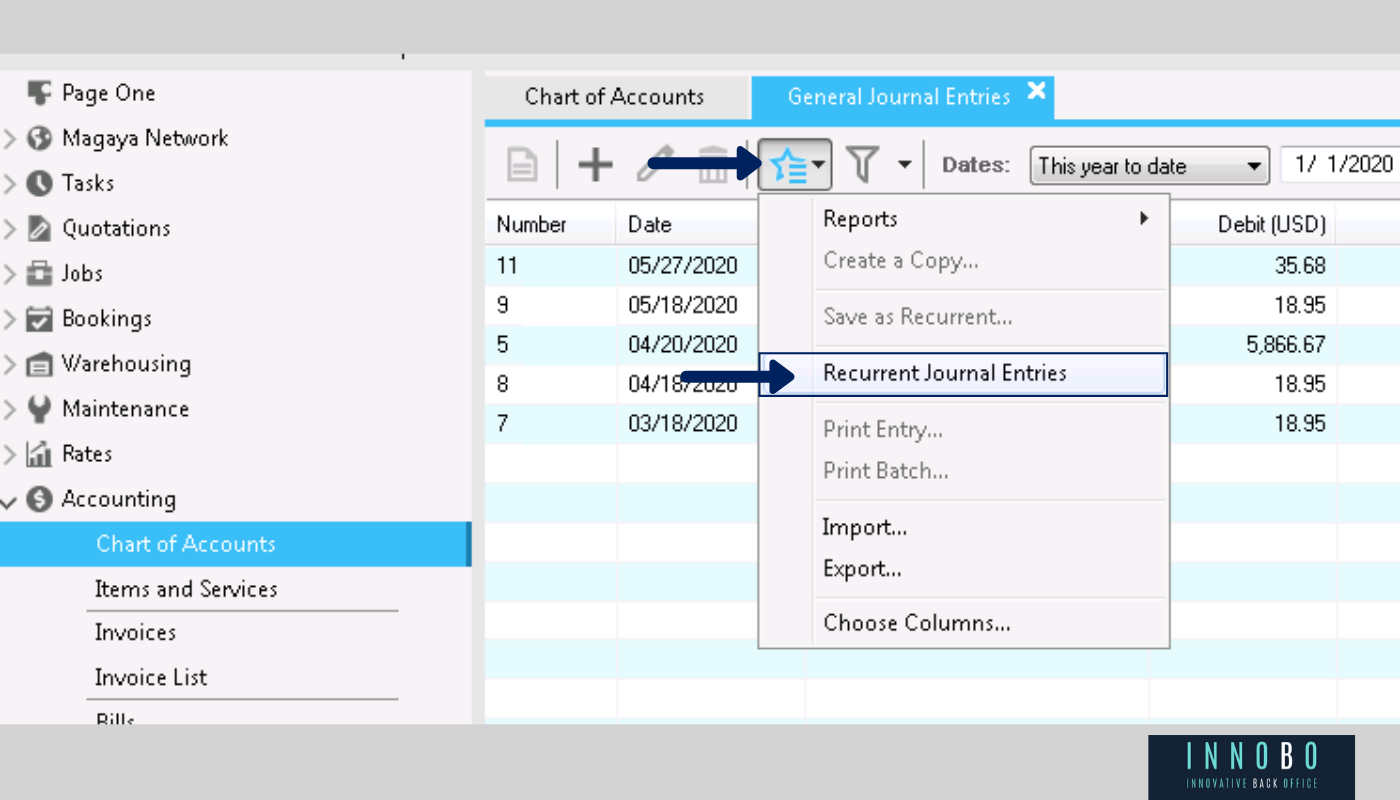
In Magaya, go to the Accounting module, enter the accounts list, then open General Journal Entries, and from there access Recurring Journal Entries.
3. Complete the automatic entry
Add one line for the depreciation expense account with the calculated monthly amount and another line for accumulated depreciation, with the same value, on the credit side. The system will assign the journal number automatically based on its numbering configuration.
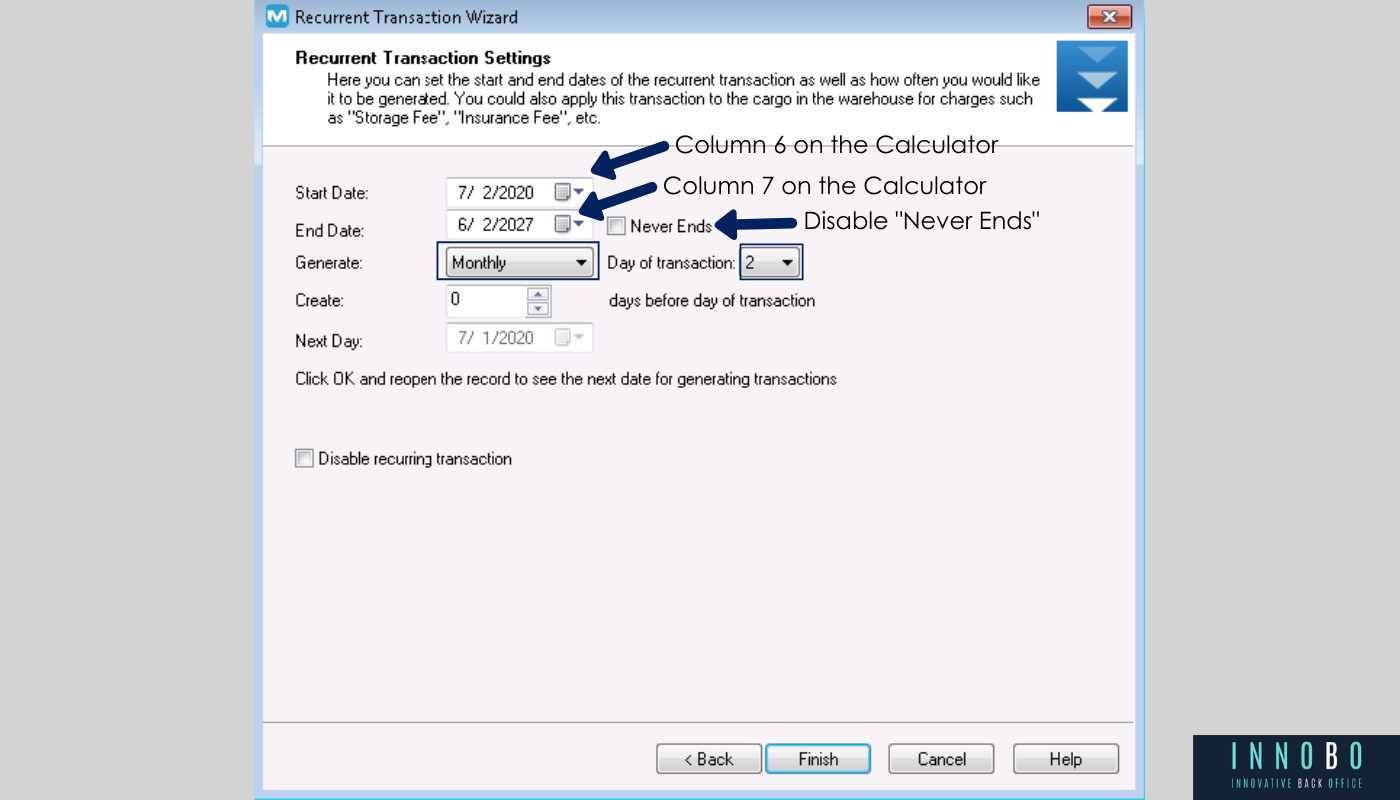
Once you click Finish, the system will continue creating an automatic General Journal Entry every month from the initial date to the programmed final date. That means your team no longer has to worry about manually recording this depreciation every period.
This kind of automation improves not only accounting accuracy, but also reduces repetitive work and lowers the risk of human error.
If you want to go further, you can also review:

We will evaluate your current operation and give you a clear view of improvement areas and how to get more value from your logistics software.
Book a free consultation →Want to automate more processes? Explore Innobo Hub →